Kodak EasyShare photo printer 350 — User's Guide
Table of Contents > Printing from a Bluetooth® wireless technology device > Printing from a Bluetooth wireless technology enabled device
2 Printing from a Bluetooth® wireless technology device
Printing from a Bluetooth wireless technology enabled device
The on-board Bluetooth wireless technology uses 2.0 technology, allowing you to print from compatible Bluetooth technology enabled devices, including many personal digital assistants (PDAs) and wireless mobile telephones. Use your wireless device to review pictures, choose printing options, and print.
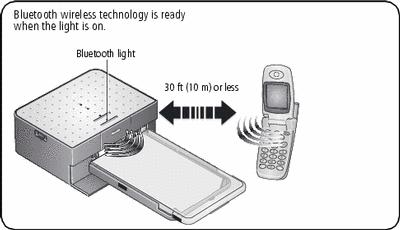
To print from a Bluetooth technology enabled phone or camera:
| NOTE: | Instructions may vary depending on your device. See your device user's guide for details. |
-
Select pictures to print.
-
Select an option to send, copy, beam, or print.
-
Select Bluetooth, if prompted.
-
Search and select KPP350-####.
Available Bluetooth technology wireless devices appear on your device, then
the Bluetooth light blinks to confirm the image is being received by the printer.
NOTE: If your device requires you to set authentication, enter pin number 0000 (default).
-
Follow prompts to confirm printing.
The selected images are sent to the photo printer for wireless printing. Wait until the paper passes 4 times and the print ejects before you remove the print.
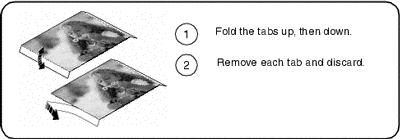
Removing the perforated tabs from the paper
| IMPORTANT: | Remove perforated tabs only after printing. Paper missing perforated tabs will not feed properly. |
To configure Bluetooth wireless technology settings for the printer:
| NOTE: | For most situations, these advanced settings are optional. |
-
Make sure the printer driver from the included EasyShare software CD is installed on your computer. Then connect the printer to your computer with the USB cable.
-
Open the Kodak wireless printer configuration utility.
Windows OS
-
From the Start menu, select Programs (or All Programs).
-
Open the Kodak folder, then open the EasyShare printer folder.
-
Select Kodak wireless printer configuration utility.
The configuration utility opens on your computer.
Mac OS X
-
Open the finder window, then click the Applications button. (Or open the Applications folder on your operating drive.)
-
Open the Utilities folder, then double-click Printer Setup Utility.
-
Double-click the printer from the list, then click Utility.
The configuration utility opens on your computer.
-
-
Next to Show, select Bluetooth.
-
Change settings as necessary. See the configuration utility Help for details.
Turning the Bluetooth wireless technology off
In communicable areas (such as an apartment), you may want to turn off the photo printer's Bluetooth wireless technology. This will prevent unwanted prints from being printed and will prevent media waste.

|
|
|
|
|
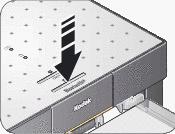
To turn the Bluetooth wireless technology off: | ||
|
|||
| To turn the default to always off: | |||
|
|||
Previous Next