KODAK EASYSHARE Z980 Digital Camera — Extended user guide
Table of Contents > Working with pictures/videos > Editing videos
3 Working with pictures/videos
Editing videos
Making a picture from a video
You can choose a single frame from a video, then make a picture suitable for printing.

|
|
|
|

|
1.
Press the Review
 button, then button, then  to find a video. to find a video. |
||
|
2.
Press the Menu
 button, then button, then  to highlight the Edit tab. to highlight the Edit tab. |
|||
|
3.
Press
 to highlight Make Picture, then press OK. to highlight Make Picture, then press OK. |
|||
|
4.
Press
 to highlight the Play icon, then press OK to play the video. (Press OK to pause. Press to highlight the Play icon, then press OK to play the video. (Press OK to pause. Press  to navigate through video frames.) to navigate through video frames.) |
|||
|
5.
During play or pause, press
 to highlight the Make a Picture icon, then press OK. to highlight the Make a Picture icon, then press OK. A picture is created. (The original video is saved.)
|
|||
| IMPORTANT: | Your camera offers an on-board Help system. To get the most from your camera, Getting help from your camera. |
Trimming a video
You can delete an unwanted portion from the beginning or end of a video.
|
|
|
|
|

|
1.
Press the Review
 button, then button, then  to find a video. to find a video. |
||
|
2.
Press the Menu
 button, then button, then  to highlight the Edit tab. to highlight the Edit tab. |
|||
|
3.
Press
 to highlight Trim, then press OK. to highlight Trim, then press OK. |
|||
|
4.
Follow the screen prompts.
The video is trimmed. (You can save it as a new video or replace the original.)
|
|||
| IMPORTANT: | Your camera offers an on-board Help system. To get the most from your camera, Getting help from your camera. |
Using video bookmarks
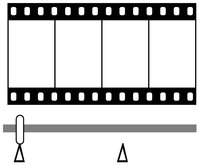
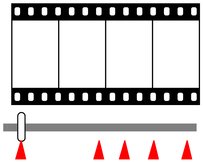
You can set bookmarks at interesting places in your video, then jump from one bookmark to another.
Setting bookmarks
|
|
|
|
|
|
1.
Press the Review
 button, then button, then  to find a video. to find a video. |
||
|
2.
Press the Menu
 button, then button, then  to highlight the Edit tab. Highlight Bookmark, then press OK. to highlight the Edit tab. Highlight Bookmark, then press OK. |
|||
|
3.
Press
 to highlight Create/Edit, then press OK. to highlight Create/Edit, then press OK. |
|||
|
4.
Press
 to highlight the Play icon, then press OK to play the video. (Press OK to pause. Press to highlight the Play icon, then press OK to play the video. (Press OK to pause. Press  to navigate through video frames.) to navigate through video frames.) |
|||
|
5.
During play or pause, press
 to highlight Add Bookmark, then press OK. When finished adding up to 9 bookmarks, highlight to highlight Add Bookmark, then press OK. When finished adding up to 9 bookmarks, highlight  , then press OK. , then press OK. A picture is created. (The original video is saved.)
|
|||
| IMPORTANT: | Your camera offers an on-board Help system. To get the most from your camera, Getting help from your camera. |
Using bookmarks
|
|
|
|
|
|
1.
Press the Review
 button, then button, then  to find a video. to find a video. |
||
|
2.
Press
 to play the video. To jump to the first bookmark, press and hold to play the video. To jump to the first bookmark, press and hold  for 4 seconds while the video is playing. for 4 seconds while the video is playing.
|
|||
 to jump to other bookmarks.
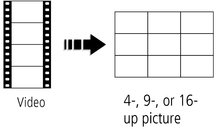
 Making a video action print
From a video, you can make a 4-, 9-, or 16-up picture, suitable for a 4 x 6-inch (10 x 15 cm) print.
|
|
|
|
|
|
1.
Press the Review
 button, then button, then  to find a video. to find a video. |
||
|
2.
Press the Menu
 button, then button, then  to highlight the Edit tab. to highlight the Edit tab. |
|||
|
3.
Press
 to highlight Action Print, then press OK. Choose an option, then press OK: to highlight Action Print, then press OK. Choose an option, then press OK:
|
|||
Previous Next