KODAK EASYSHARE Digital Frame — P750/P850
Table of Contents > Getting started > Copying pictures to your frame
1 Getting started
Copying pictures to your frame
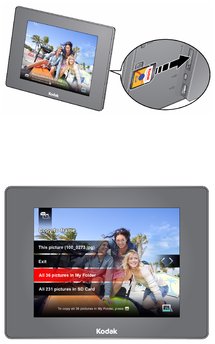
Copying pictures to your frame's internal memory has never been easier. Each time you insert a memory card or USB device, press OK and follow the copy directions.

|
CAUTION: Do not remove a card or disconnect a device while copying. Your card, pictures, or device could be damaged. |

|
|
|
|
|
1.
Insert a memory card or USB device (flash drive, card reader, hard drive).
The pictures start playing. A copy message appears, 'To copy pictures from <inserted source> to the frame's internal memory, press OK.' |
||
|
2.
Press OK.
|
|||
|
3.
Highlight your copy method:
This picture—copy the displayed picture. All pictures in folder —copy all the pictures in a folder (folder represents the folder name, if there are any folders on the inserted card or device). All pictures in source —copy all of the pictures on the card or USB device (source represents the type of card or device that's inserted in the frame). |
|||
|
4.
Press OK.
The slide show plays while pictures are being copied. |
|||
| NOTE: | Copies are automatically resized to a lower resolution (smaller size). Full resolution is unnecessary for viewing and quickly fills up the frame's memory. Copying from internal memory to a memory card or USB device is not supported. To copy pictures anytime a slide show is playing, with a card or USB device inserted, press OK , highlight  (Copy), and continue with step 3 above. (Copy), and continue with step 3 above. |
Copying pictures directly from a computer
Pictures copied from your computer are not resized to a lower resolution on the frame. To save space on your frame, first resize your pictures on your computer (800 x 600 resolution is best). 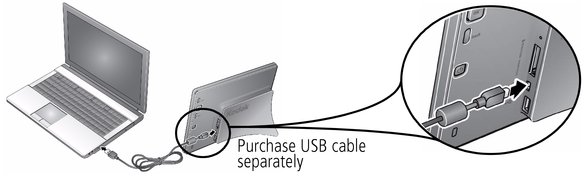
-
Connect your frame to the computer with a USB cable (Series mini-B, purchase separately). Your frame appears as a removable USB device on the computer.
-
Using your computer operating system, copy or drag pictures to the frame.
| NOTE: | Your frame does not support copying from the frame to a computer. |
Copying pictures from a computer, using memory card
The easiest way to copy a large number of pictures from your computer to your frame's internal memory:
-
Insert an empty memory card or USB device into your computer.
-
Copy some or all of the pictures from your computer onto the card or USB device.
-
Remove the card or USB device from your computer, and insert it into the frame.
-
Follow the copy directions on Copying pictures to your frame (highlight All pictures, then press OK).
Copying pictures from a digital camera
-
Remove the memory card (containing pictures) from your camera, and insert it into the frame.
-
Follow the copy directions on Copying pictures to your frame.
Previous Next