KODAK PLAYTOUCH Video Camera — Extended user guide
Table of Contents > Doing more with your camera > Editing videos
3 Doing more with your camera
Editing videos

|
|
|
|
||
|
1.
Tap the Review icon
 . . |
||||
|
2.
Tap or swipe the left/right side of the LCD to find a video/picture. To play a video, tap the Play icon.
|
|||||
|
3.
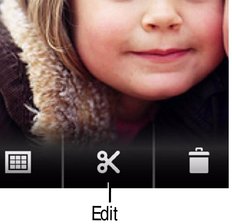
Tap the Edit icon
 . . The Editing menu appears. |
|||||
|
4.
Tap a choice:
|
|||||
| NOTE: | To switch to recording mode, press the Record/OK button. |
Trimming a video
You can remove an unwanted section from a video, saving only the desired portion.
|
|
|
|
|

|
1.
Tap the Review icon
 . . |
||
|
2.
Tap or swipe the left/right side of the LCD to find a video/picture.
|
|||
|
3.
Tap the Edit icon
 , then Trim Video. , then Trim Video. |
|||
|
4.
Drag the In marker to the desired video start. Drag the Out marker to the desired video end. Tap the Play icon to preview the video.
|
|||
|
5.
Tap Save, then follow the prompts to Save (to replace the current video) or Save As (to save it as a new video).
|
|||
Extracting a single video frame
You can create a picture from a single video frame.
|
|
|
|
|
|
1.
Tap the Review icon
 . . |
||
|
2.
Tap or swipe the left/right side of the LCD to find a video/picture.
|
|||
|
3.
Tap the Edit icon
 , then Extract Single Frame. , then Extract Single Frame. |
|||
|
4.
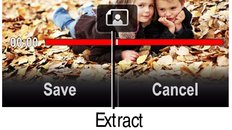
Drag the Extract icon (or tap the left/right side of the LCD) until the desired frame is shown.
|
|||
|
5.
Tap Save.
The frame is saved as a new picture. |
|||
Previous Next