KODAK EASYSHARE P76 Digital Frame — Extended user guide
Table of Contents > Viewing pictures > Searching for and viewing your pictures
2 Viewing pictures
Searching for and viewing your pictures

|
|
|
|
||
|
|
||||
|
|
|
|
|

|
1.
Press OK to pause a slide show and display the control panel icons.
|
||
|
2.
Press
 to highlight to highlight  (Pictures), then press OK. (Pictures), then press OK.
|
|||

|
3.
Press
 to highlight the different ways to search for and play your pictures. to highlight the different ways to search for and play your pictures. 
|
||
All—searching and viewing all pictures
Select  and press OK. All of the pictures in the current picture source are displayed as thumbnails.
|
|
|
|
|

|
1.
Press
 to highlight the first thumbnail. to highlight the first thumbnail. For details on moving through the thumbnails, see Viewing thumbnails. |
||
|
2.
Press OK to display the highlighted thumbnail at full-screen.
|
|||
|
3.
Press OK again to start the slide show.
|
|||
Date—searching and viewing by date
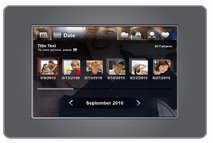
Select  and press OK. A film strip of the pictures in the current picture source is displayed, organized by date.
| NOTE: | Make sure the time and date are set accurately on your camera or other capture device. If you modify pictures on your computer, the frame uses the modify date, not the capture date. |
|
|
|
|
|
|
1.
Press
 to highlight the current picture in the film strip. to highlight the current picture in the film strip. |
||
|
2.
Press
 to navigate through the film strip. To move even faster, press and hold an arrow button. to navigate through the film strip. To move even faster, press and hold an arrow button. |
|||
|
3.
To quickly move through many pictures in the film strip, press
 to highlight the slider bar. Then press to highlight the slider bar. Then press  . . |
|||
|
4.
To search by specific month and year, press
 to highlight the date bar. Then press to highlight the date bar. Then press  . . |
|||
|
5.
Press OK to display thumbnails of the pictures taken on the date of the selected picture.
For details on moving through the thumbnails, see Viewing thumbnails. |
|||
Folders—searching and viewing by folders
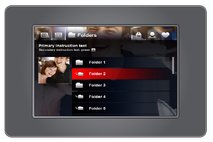
Select  and press OK. Folders in the current picture source are listed here.
|
|
|
|
|
|
1.
Press
 to highlight the first folder in the list. to highlight the first folder in the list. |
||
|
2.
Press
 to navigate through the folders. To move even faster, press and hold an arrow button. to navigate through the folders. To move even faster, press and hold an arrow button. A preview slide show plays of the pictures in the highlighted folder. |
|||
|
3.
Press OK to display thumbnails of the pictures in the folder.
For details on moving through the thumbnails, see Viewing thumbnails. |
|||
|
4.
Press OK to display the highlighted thumbnail at full-screen.
|
|||
|
5.
Press OK again to start the slide show.
|
|||
Keywords—searching and viewing by keywords
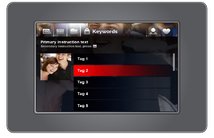
KODAK Digital Cameras (and others) let you tag pictures with keywords. Select  and press OK. If there are any pictures tagged with keywords in the current picture source, they are listed here.
|
|
|
|
|
|
1.
Press
 to highlight the first keyword in the list. to highlight the first keyword in the list. |
||
|
2.
Press
 to navigate through the keywords. To move even faster, press and hold an arrow button. to navigate through the keywords. To move even faster, press and hold an arrow button. A preview slide show plays of the pictures with the highlighted keywords. |
|||
|
3.
Press OK to display thumbnails of the pictures with that keyword.
For details on moving through the thumbnails, see Viewing thumbnails. |
|||
|
4.
Press OK to display the highlighted thumbnail at full-screen.
|
|||
|
5.
Press OK again to start the slide show.
|
|||
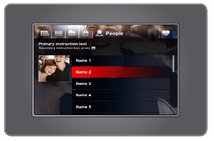
People—searching and viewing by people
The latest KODAK Digital Cameras let you identify people in your pictures. Select  and press OK. If there are any identified people in the current picture source, they are listed here, grouped by person.
|
|
|
|
|
|
1.
Press
 to highlight the first person in the list. to highlight the first person in the list. |
||
|
2.
Press
 to navigate through the people. To move even faster, press and hold an arrow button. to navigate through the people. To move even faster, press and hold an arrow button. A preview picture of the highlighted person is displayed. |
|||
|
3.
Press OK to display thumbnails of pictures of that person.
For details on moving through the thumbnails, see Viewing thumbnails. |
|||
|
4.
Press OK to display the highlighted thumbnail at full-screen.
|
|||
|
5.
Press OK again to start the slide show.
|
|||
Favorites—searching and viewing favorites
KODAK Digital Cameras let you tag pictures as favorites. Select  and press OK. If there are any favorites in the current picture source, they are displayed as thumbnails.
|
|
|
|
|

|
1.
Press
 to highlight the first thumbnail. to highlight the first thumbnail. For details on moving through the thumbnails, see Viewing thumbnails. |
||
|
2.
Press OK to display the highlighted thumbnail at full-screen.
|
|||
|
3.
Press OK again to start the slide show.
|
|||
Viewing thumbnails
View the pictures on your frame as thumbnails when you're searching for pictures (All—searching and viewing all pictures).
|
|
|
|
|

|
1.
Press
 to highlight the first thumbnail. to highlight the first thumbnail. |
||
|
2.
Press the arrows to navigate through the thumbnails. To move even faster, press and hold an arrow button.
|
|||
|
3.
To quickly page through the thumbnails, continue to press
 to highlight the slider bar. Then press to highlight the slider bar. Then press  . . |
|||
|
4.
Press OK to display the highlighted thumbnail at full-screen.
|
|||
|
5.
Press OK again to start the slide show or press the back button to return to thumbnails view.
|
|||
Previous Next