Kodak EasyShare M820/M1020 digital frame — User guide
> Doing more with your frame > Viewing your pictures
2 Doing more with your frame
Viewing your pictures
Playing a slide show
There are three ways to start a slide show on your frame:
-
Insert a memory card or USB device, then turn on the frame.
-
Turn on the frame, then insert a card or connect a USB device—a new slide show starts automatically, replacing a currently running slide show or single view picture.
note: Music plays automatically when a memory card or USB device with music on it is connected.
-
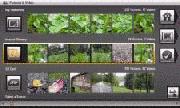
Select a picture in thumbnails view (Viewing thumbnails), or select a picture source on the Pictures and Videos screen, then tap
 (Slide show). See Using your frame's touch border to scroll forward/backward quickly.
| note: | A slide show plays continuously until you stop it or turn off the frame. |
Viewing thumbnails
There are two ways to view your pictures as thumbnails:

|
|
|
|
|
|
||
|
|||
 (Home). Tap
  (Pictures and Videos), select a picture source (see
  (Menu), then
  (Multi-up).
 To navigate through the thumbnails, slide your finger left/right along the bottom touch border. Touch and hold until the screen changes (about 3 seconds) to move even faster through the thumbnails.
Viewing a single picture
-
To view a single, full-screen picture, highlight it in thumbnails view, then tap OK.
-
To magnify a picture up to 8X, tap
 (Menu), then tap
  (Zoom) repeatedly. To view other parts of the picture, tap
  . To return to 1X size, tap
  (Zoom) repeatedly.
 -
To rotate a picture, tap
 (Menu), then tap
  (Rotate).
Viewing pictures by date or filename
By default, the pictures and videos on your frame are arranged and played by date, starting with the oldest. You can play the arrangement or order, by date, or alphabetically by filename.
To change the sort order:
-
Select a picture source (for example, a folder with pictures), or multiple pictures (see Selecting multiple pictures).
-
Tap
 (Menu).
 -
Highlight Sort, then tap OK.
-
Select a sort order:
-Date, oldest to newest (default)
-Date, newest to oldest
-Filename, A - Z
-Filename, Z - A
-
Tap OK.
Saving your favorite slide show for easy access
While viewing the slide show:
-
Tap
 (Viewing Options), then Save as My Slideshow. Tap Yes to confirm.
 note: The saved slide show appears on the Pictures and Videos screen as a picture source (  ).
).
Previous Next